

Folders
Once you have more than a handful of contact lists or campaigns, a flat list becomes hard to work with. Folders let you group related items together so you can find them quickly.
Folders are available in three places:
- Contact Lists — see Group Folders for list-specific detail
- Email Campaigns
- Autoresponders
Each area keeps its own separate set of folders, and folders belong to the user who created them — your colleagues do not see yours, and you do not see theirs.
List Mode and Folder Mode
Every screen that supports folders has two view modes, switched with the icons above the table:
| Icon | Mode | What you see |
|---|---|---|
| ☰ | List mode | Every item in one flat list, regardless of folder. This is the default. |
| 🗀 | Folder mode | Items grouped under their folders, each folder collapsible. |
A third icon — a folder with a + — appears only in folder mode and creates a new folder.
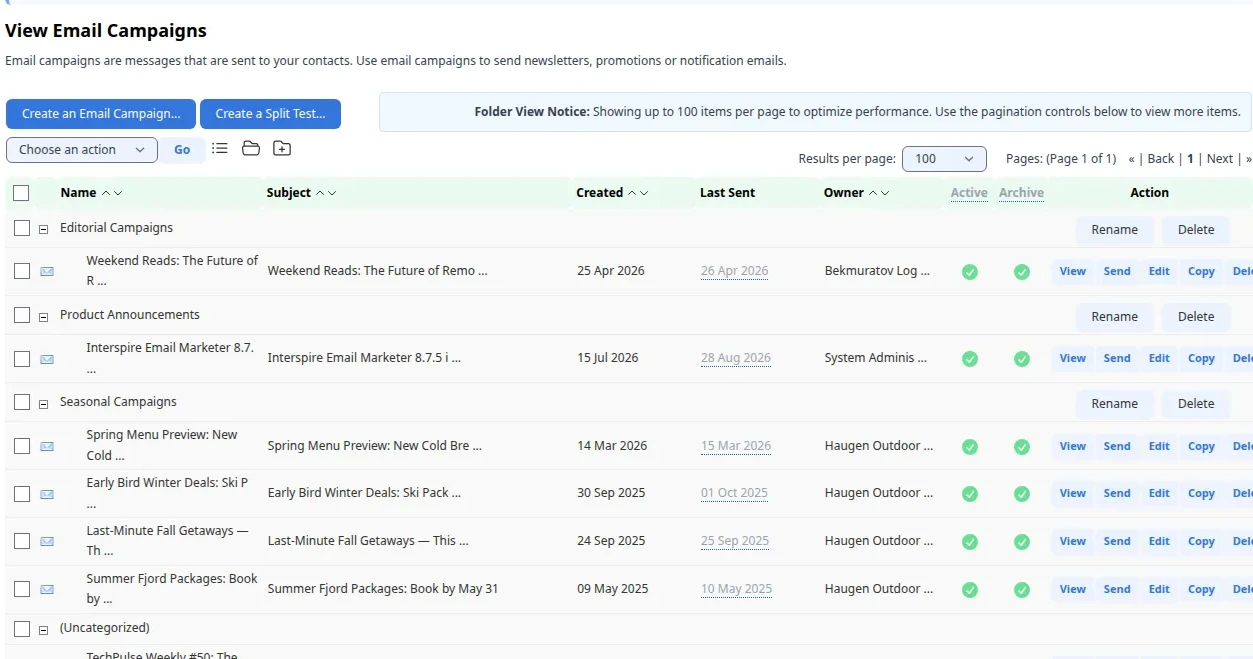
Email campaigns in folder mode, with a “Test” folder and the “(Uncategorized)” folder expanded
Your choice of mode is remembered as you move around, so if a screen looks unexpectedly grouped (or flat), check which mode is active.
The (Uncategorized) Folder
Every folder-mode screen has a folder called (Uncategorized). It holds everything that has not been filed anywhere else, and it is where new items land.
It is not a folder you created, so it behaves differently from the rest:
- It cannot be renamed.
- It cannot be deleted.
- It has no Rename or Delete buttons — the Action column is empty for this row.
Creating a Folder
- Switch to folder mode.
- Click the Add a new folder icon.
- Enter a name in the Enter new folder name box and click Add.
The new folder appears in the list, ready to receive items.
Two names are rejected: a blank one (“Please enter a name for the folder”), and one that matches an existing folder in the same area (“A folder with the same name already exists. Please try another name.”). Names only have to be unique within their own area, so a “Newsletters” folder for campaigns and a “Newsletters” folder for contact lists can coexist.
Moving Items Into Folders
Drag an item’s row and drop it onto the folder you want it in. To take an item out of a folder without deleting it, drag it onto (Uncategorized).
Click a folder’s expand or collapse control to show or hide its contents. Folders remember whether you left them open.
Renaming and Deleting Folders
Each folder row has Rename and Delete buttons in the Action column.
- Rename opens a small dialog. Enter the new name and click Rename. The same duplicate-name rule applies.
- Delete removes the folder itself.
Folder Mode and Large Accounts
Folder mode has to build the whole grouped tree, so it caps how much it loads at once. When there are more items than the cap, a Folder View Notice appears above the table:
Showing up to 100 items per page to optimize performance. Use the pagination controls below to view more items.
Use the pagination controls and the Results per page selector beneath the table to reach the rest. If you are looking for one specific item rather than browsing, switching to list mode and sorting by name is usually quicker.
Related Pages
- Contact Lists — folders for contact lists, with screenshots
- Email Campaigns — managing your campaigns
- Autoresponders — managing your autoresponders