

Logging In to Interspire Email Marketer
Take the following steps to log in to Interspire Email Marketer:
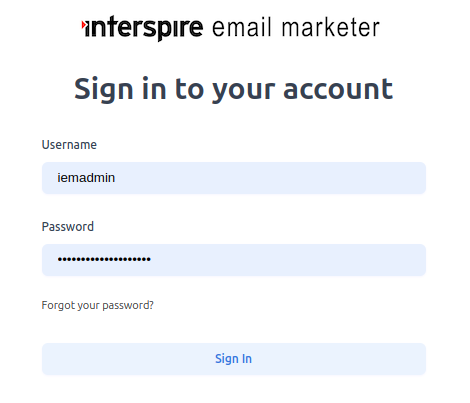
- Open your Internet browser and enter Interspire Email Marketer’s URL in the address bar. Hit Enter or click Go.
-
Enter your Username and Password.
-
Click Login. If your Username and Password are correct, you will be redirected to the Interspire Email Marketer dashboard.
Signing In With Two-Factor Authentication
If your administrator has turned on two-factor authentication, entering your username and password correctly takes you to a second screen instead of straight to the dashboard. There are two versions of it, depending on which method your administrator enabled.
Your administrator controls this — you cannot switch it on or off yourself. See Security Settings for the options available to them.
One-Time Password by Email
Interspire emails you a one-time password (OTP) and shows a prompt telling you which address it went to, with the address partly masked. Enter the code from that email and continue.
- If the code is wrong, you are told to try again. You have a limited number of attempts, set by your administrator.
- If you run out of attempts, you are asked to request a new code rather than keep guessing.
- If the email has not arrived, check your junk or spam folder first, then use the resend option. The number of resends is also capped; once you hit the limit, the screen tells you to contact your administrator.
Code From an Authenticator App
If your administrator enabled app-based authentication, you use an authenticator app such as Google Authenticator, Authy or 1Password.
The first time you sign in, Interspire displays a QR code. Scan it with your authenticator app to register your account, then enter the 6-digit code the app generates to finish signing in.
On every sign-in after that, you are simply asked to open your app and enter the current 6-digit code. The screen tells you how many attempts you have left.