

Statistics
This chapter discusses how to use the Statistics menu in the navigation bar.
Statistics Overview
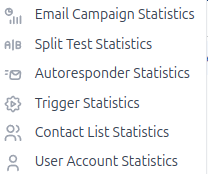
Use the statistics screens to view general and detailed information about Interspire Email Marketer’s various subjects, such as email campaigns, split tests, autoresponders, triggers, contact lists and user accounts. Each screen provides you with a variety of statistical information.
- See Viewing Email Campaign Statistics for information on viewing statistics about the email campaigns you have sent out to your contacts.
- See Viewing Split Test Statistics for information on viewing statistics about the split tests you have performed.
- See Viewing Autoresponder Statistics for information on viewing statistics about the autoresponder you send out to contacts at predefined intervals.
- See Viewing Trigger Statistics for information on viewing statistics about the emails that Interspire Email Marketer has sent to contacts in response to trigger events.
- See Viewing Contact List Statistics for information on viewing statistics about the behavior of the contacts in your contact lists.
- See Viewing User Account Statistics for information on viewing statistics about the users of Interspire Email Marketer (including yourself).
- See Managing Statistics for information on performing a variety of tasks in the Statistics screens, such as exporting statistics, printing statistics, and using the detailed statistics screens.
What Your Tracking Mode Affects v8.8.0
What the statistics screens can show you depends on the tracking mode the campaign, autoresponder or trigger was sent with. The mode is chosen per campaign and inherited from your list and account defaults.
- Aggregate (anonymous) campaigns report campaign totals only. Unique opens and clicks show as not available, and the per-recipient drill-downs are empty, because nothing was stored against individual contacts.
- Minimal — last-open date only campaigns produce no open or click reports at all. All you get is a last-opened date on the contact’s record.
- Individual — consent required campaigns show data for the recipients who consented to tracking. Recipients who did not consent received an untracked message and do not appear.
- Off campaigns record nothing, so there is no engagement data to report.
Where your administrator has set a tracking retention window, open and click history is time-bounded and the statistics screens tell you so. See Email Tracking Modes and Consent for the full reference.
Refreshed Statistics Presentation v8.7.5
Version 8.7.5 refreshes how statistics are presented. The detailed statistics screens now surface your key rates in at-a-glance metric cards at the top of the screen, so you can see headline figures such as open rate and click rate without scanning through tables. Below the cards, engagement-over-time charts plot opens and clicks across the days following a send, making it easy to spot when recipients were most active.
Bot Detection Updated
Version 8.7.5 improves the automatic bot detection for email opens and link clicks. Many email security systems and spam filters automatically scan links in emails, which can inflate your open and click statistics. Interspire Email Marketer identifies this automated activity and labels it so you can see your true engagement rates.
How It Works
The system uses multiple detection methods to classify each open and click event. When bot activity is detected, a Bot label appears next to the event in the opens and links detail tables. The detection tiers are:
| Label | Detection Method |
|---|---|
| Timing | The open or click happened suspiciously fast after delivery |
| Scanner | The activity matches a known security scanner signature |
| No Open | A link click was recorded without any corresponding open event |
| IP Rate | The originating IP address generated activity at an abnormally high rate |
| Burst | Multiple links in the email were clicked in rapid succession |
Events identified as human activity have no bot label.
Viewing Bot Activity
In the Open statistics and Link statistics tabs of any detailed statistics screen, a Bot column appears next to each event. This allows you to see at a glance which opens and clicks came from automated scanners versus real recipients.
Filtered and Raw Views
By default, the open and click figures shown in the metric cards, charts and totals exclude detected bot and automated activity, so the numbers reflect real human engagement. A toggle on the detailed statistics screen lets you switch between two views:
- Filtered (human only) – The default. Bot and automated activity is removed from the counts so you see genuine recipient engagement.
- Raw (all activity) – Includes every recorded open and click, including activity attributed to bots and scanners. Use this view when you want to reconcile against totals from other systems or see the unfiltered figures.
Switching the view updates the metric cards, charts and tables together.
When Bot Detection Runs
Bot detection works in two ways. Events are checked in real time as opens and clicks happen, and a daily background reconciliation re-examines historical data to catch patterns that are only visible across many events over time. This applies to both email campaign and autoresponder statistics, so your counts stay accurate as more activity is recorded. See Cron Jobs for the background reconciliation schedule.
Configuring Bot Detection
Administrators can fine-tune bot detection thresholds in Settings > Email Settings. See Bot Detection Settings for details.
Exporting with Bot Data
When you export opens or link click statistics to CSV, the exported file includes a Bot column showing the detection tier label for each event. See Exporting Statistics for details.